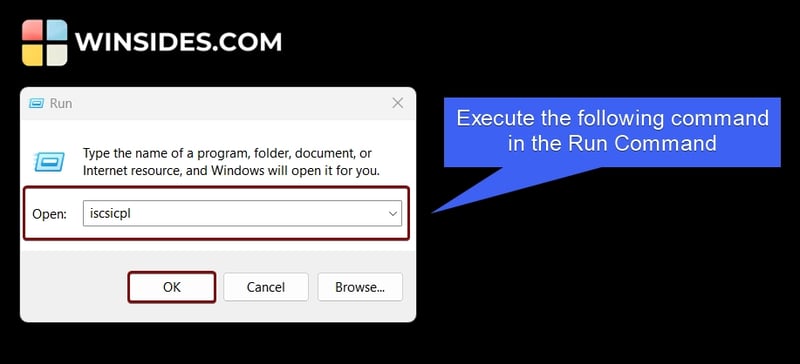
Microsoft iSCSI Initiator is a built-in feature in Windows 11 that allows computers to access storage devices over a network using the Internet Small Computer System Interface protocol. To start the service, users can open the Run Command using the keyboard combination WinKey + R and execute the command "iscsicpl". If the service is not running, a pop-up will appear prompting the user to start the service. The iSCSI Initiator Properties window will then open, allowing users to discover and log on to a target using a basic connection.
The iSCSI Initiator Properties window has various tabs, including Targets, Discovery, Favourite Targets, Volume and Devices, RADIUS, and Configuration. The Targets tab allows users to find various connection options and properties, while the Discovery tab provides options for target portals, adding and removing iSNS servers, and discovering portals. The Favourite Targets tab ensures that all volumes and devices on a favourite target are available, and the Volumes and Devices tab allows users to add a particular volume or device.
The RADIUS tab is used for authentication of iSCSI connections, and the Configuration tab allows users to set global settings, initiator CHAP secret, and IPSec tunnel. Users can also generate a detailed report of all connected targets and devices on the system. To check the iSCSI service status, users can go to the Run Command and execute the command "services.msc". If the service is not working, users can try restarting the service or verifying network connectivity to the iSCSI target.
Troubleshooting steps for Microsoft iSCSI Initiator on Windows 11 include checking the status of the service, restarting the service, and verifying network connectivity to the iSCSI target. The default port for iSCSI is 3260, which allows communication with iSCSI targets over a TCP/IP network.

dev.to
dev.to

RSS Hunter
2025-03-13